
I have a Samsung Smart Monitor M7 on my desk, running to my Mac over DisplayPort. It is a good screen. The one thing that bothered me, every day, was that I could not change its volume from the keyboard.
Press the volume key and macOS shows the HUD with a slash through it. The keys are not broken and neither is the monitor. macOS switches them off on purpose: once audio leaves the Mac over DisplayPort or HDMI, the system stops offering its own volume control and treats the display's level as the display's business. The sound is coming out of the monitor, so the monitor's remote is the only thing that moves it.
That is a reasonable design decision and a small daily annoyance. I wrote SmartVolume to get the keys back.
The way in
Smart Monitors run Tizen, which means they are network devices as much as they are screens. Mine sits on the same Wi-Fi as everything else in the flat and announces itself to anything that asks. That turned out to be the way in.
So SmartVolume leaves the video cable alone. It finds the monitor on the local network, asks it once for permission, watches for the volume keys, and sets the monitor's actual volume when you press them.
What it is
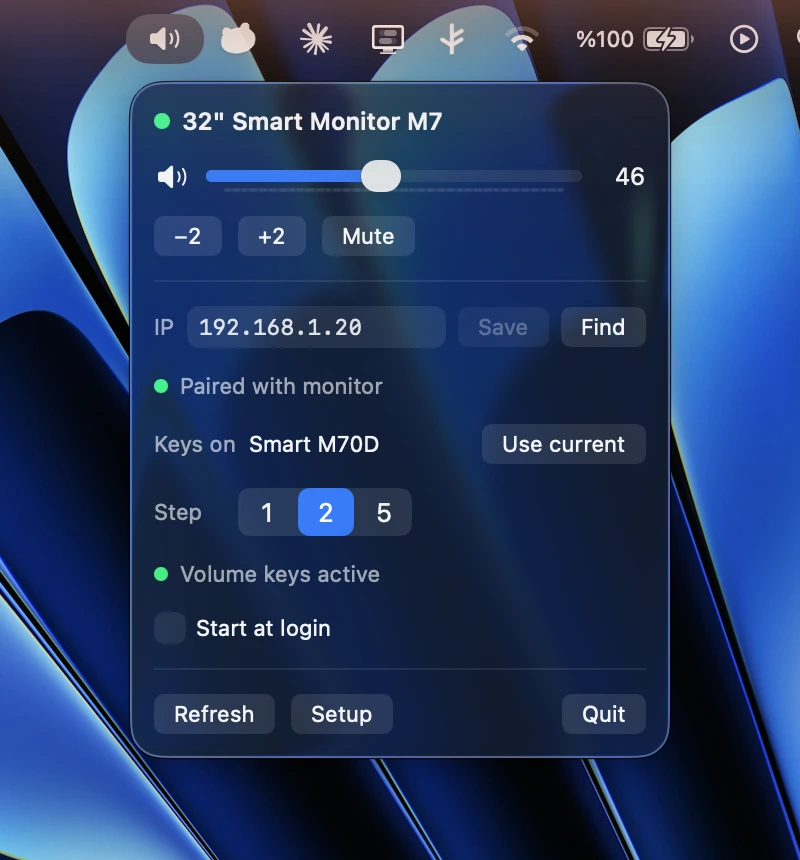
A menu bar app, no Dock icon. Click the icon and you get a slider, a step-size setting of 1, 2 or 5, a mute toggle, and a switch to start at login. Most of the time you never open it. You press the volume keys and they work, which is the entire point.
The keys are only taken over while the monitor is the active audio output. Switch to headphones and macOS goes back to behaving normally, with no setting to remember to flip.
Installing it
Open the DMG and drag SmartVolume to Applications. It is signed with an Apple Developer ID and notarized, so it opens without any right-click-to-open dance. On first launch it walks you through three steps and asks for two permissions:
- Local Network. This is how it reaches the monitor. Without it the app cannot see the screen sitting a metre in front of you.
- Accessibility. This is what lets it act on the volume keys. macOS treats intercepting keys as a privileged thing to do, and it is right to.
Then it finds your monitor and asks it for control rights. The monitor puts an approval prompt on its own screen. Accept it there, once, with the remote. After that it stays paired.
What it works with
I want to be straight about this, because a utility that silently does nothing is worse than no utility at all. I have tested this on exactly one monitor.
| Status | Hardware |
|---|---|
| Verified | Samsung Smart Monitor M7 (LS32DM702UUXUF), 32″. This is the one on my desk and the only device I can vouch for. |
| Expected, untested | Other Tizen-based Samsung Smart Monitors, including the M5, M7 and M8 lines and the M70 and M80 variants, plus networked Samsung Tizen TVs. They speak the same protocols, so it should work. I have not tried any of them. |
| Will not work | Non-smart Samsung monitors: the Odyssey series, and ViewFinity models without a smart hub. They have no network stack for SmartVolume to talk to. They do take DDC/CI commands over the video cable though, so use MonitorControl or BetterDisplay instead. Both are free and both are better at that job than anything I would write. |
One requirement in either case: the monitor has to be powered on and on the same network as the Mac. If it is asleep or on another subnet, there is nothing to find.
How it works, for the curious
Three pieces, none of them clever:
- Finding the monitor. It uses SSDP, the discovery protocol behind UPnP, to ask the local network who is out there. The monitor answers with its address, so setup never asks you for one. The panel shows the address it found, and lets you set it by hand if discovery cannot reach your screen.
- Setting the volume. Volume changes go over UPnP RenderingControl as absolute values. Not a stream of fake remote-control button presses, but "set the volume to 34".
- Getting permission. The monitor will not take commands from a stranger, so the app pairs with it once. That is the prompt you approve on the monitor itself during setup.
Privacy
Nothing leaves your machine. There is no telemetry, no analytics, no account. The only network traffic the app makes is to the monitor on your local network. The key interception sees the three media keys and nothing else. It never receives regular keystrokes, and there is nowhere for anything to be sent even if it did.
If it does not work
Given that I have tested this on one screen, that is a real possibility. If you try it on a monitor I have not, I would genuinely like to know either way. Tell me the model and what happened at hello@brk.bz or open an issue on GitHub, and I will add it to the list above.