
Most of what I open a browser for takes ten seconds: check a word, look at a score, paste a link, glance at a page someone sent. Doing that means finding the browser, a new window or tab on top of twenty others, then going back to what I was doing and closing it later. The browser is always one more thing on the screen.
This week a few people showed small browsers built on the WebKit that already ships with macOS: Search, a whole browser in 2.9 MB, and then one living in the Dock and one in the notch. I wanted one in the menu bar, the place I already go for small things.
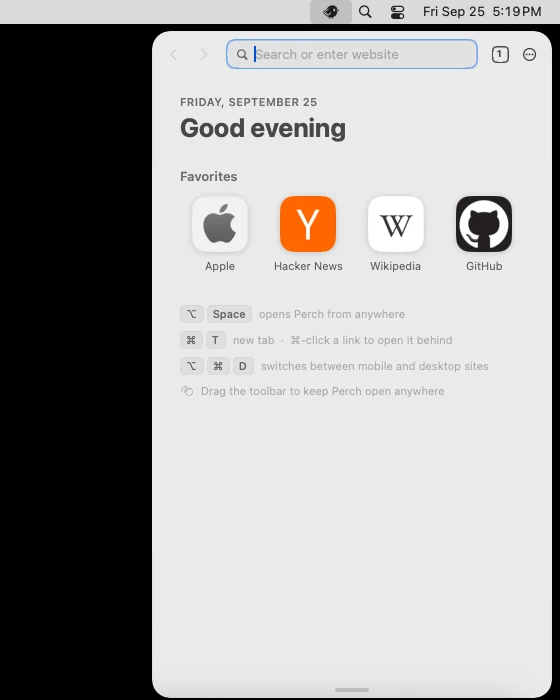
So Perch hangs from the menu bar. Click its icon, or press ⌥ Space from any app, and a page drops down on a pane of glass. Press Esc and it is gone, and you are back in the app you came from.
What it does
- One keystroke away. The shortcut works from any app, over full-screen ones too, and you can change it in Settings. When Perch closes, focus goes back where it was, so you can keep typing.
- One field. Type an address or a search. Suggestions come from your history, your favourites and your search engine, and when what you are typing is clearly a site you have been to, Return goes straight there.
- Sized for a menu bar. At phone width, sites get their mobile layout, which is what most of them look best in at that size. Pull the grip at the bottom and it grows, and switches to desktop layouts once it is wide. Double-click the grip to step through phone, tablet and desktop sizes.
- Stays open when you want it to. Drag the toolbar and the panel lifts off the menu bar and stays wherever you drop it, open while you work in other apps. Double-click the toolbar and it docks again.
- Tabs, without a tab bar. The little square with a number shows every tab as a card, the way Safari does on an iPhone. ⌘T, ⌘W, ⌘1–9 and ⌘-click all work as you would expect.
- A start page. The date, your favourites, the sites you visit most with their own icons, and nothing else.
Also: private tabs that forget everything when the last one closes, ads and trackers blocked before they load, find on page, zoom, downloads, sharing, session restore, launch at login, light and dark. It can be your default browser too.
Small on purpose
Perch is native Swift on WebKit, the engine Safari uses and every Mac already has. It does not bring its own copy of Chromium, so the whole app is under 2 MB, and half of that is the bird on its icon. It has no Dock icon and no window of its own, and it loads nothing at launch: tabs from last time are restored as addresses and only load when you look at them.
Installing it
Unzip it and drag Perch to Applications. This first version is not notarized yet, so macOS will refuse to open it the first time. Open it once, then go to System Settings › Privacy & Security and click Open Anyway. Or from a terminal:
xattr -dr com.apple.quarantine /Applications/Perch.app
After that it is an icon in the menu bar. Right-click it for a small menu, and look in Settings for the shortcut, the search engine and launch at login.
Things to know
- It is 0.1. It is days old. Expect rough edges, and tell me about them.
- No extensions, no password manager. Passwords you save in iCloud Keychain are not offered in Perch yet. It is meant for quick looks, next to your main browser, not instead of it.
Privacy
No account, no telemetry, no analytics. History, favourites and your open tabs stay in a folder on your Mac. The only requests Perch makes on its own are for search suggestions while you type, to your search engine, and you can turn those off in Settings. Private tabs never ask for them.
If something breaks
Open an issue on GitHub or write to hello@brk.bz with the page you were on and what happened.